
This post is sponsored by TourBox.
I’ve been using the same digital art setup for several years now, and as a professional artist who makes children’s picture books for a living, I think it’s about time that I gave my setup a makeover to make drawing more comfortable and more efficient.
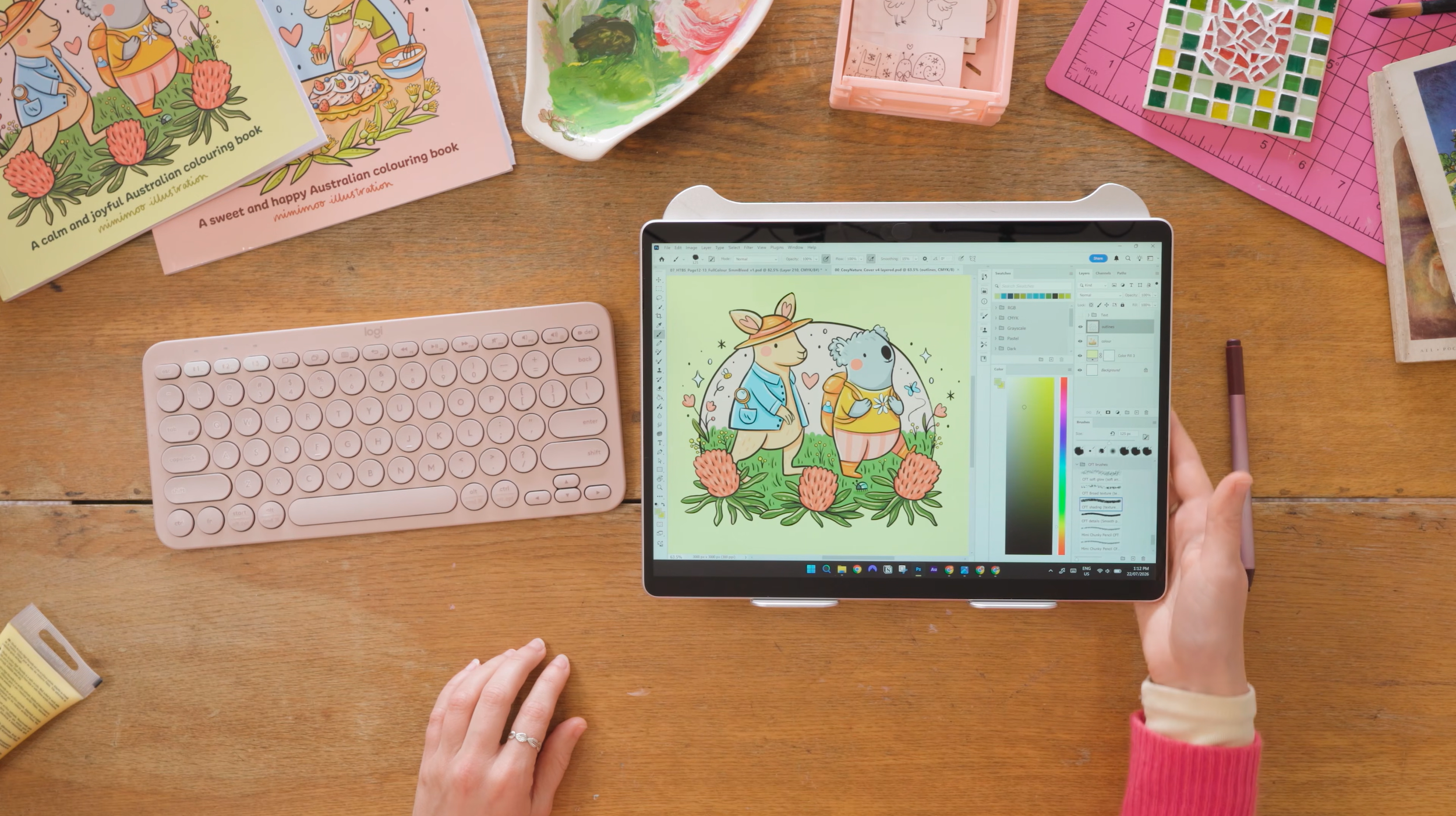
What I currently use for making digital art
I draw all of my professional picture book illustrations in Adobe Photoshop on a 2-in-1 laptop with the Microsoft Pen - this one is the Surface Pro 9 and I’ve been using it nearly everyday for the past 2 years.
I also use a Logitech K380 wireless keyboard when I draw in Photoshop since I use a lot of shortcuts.
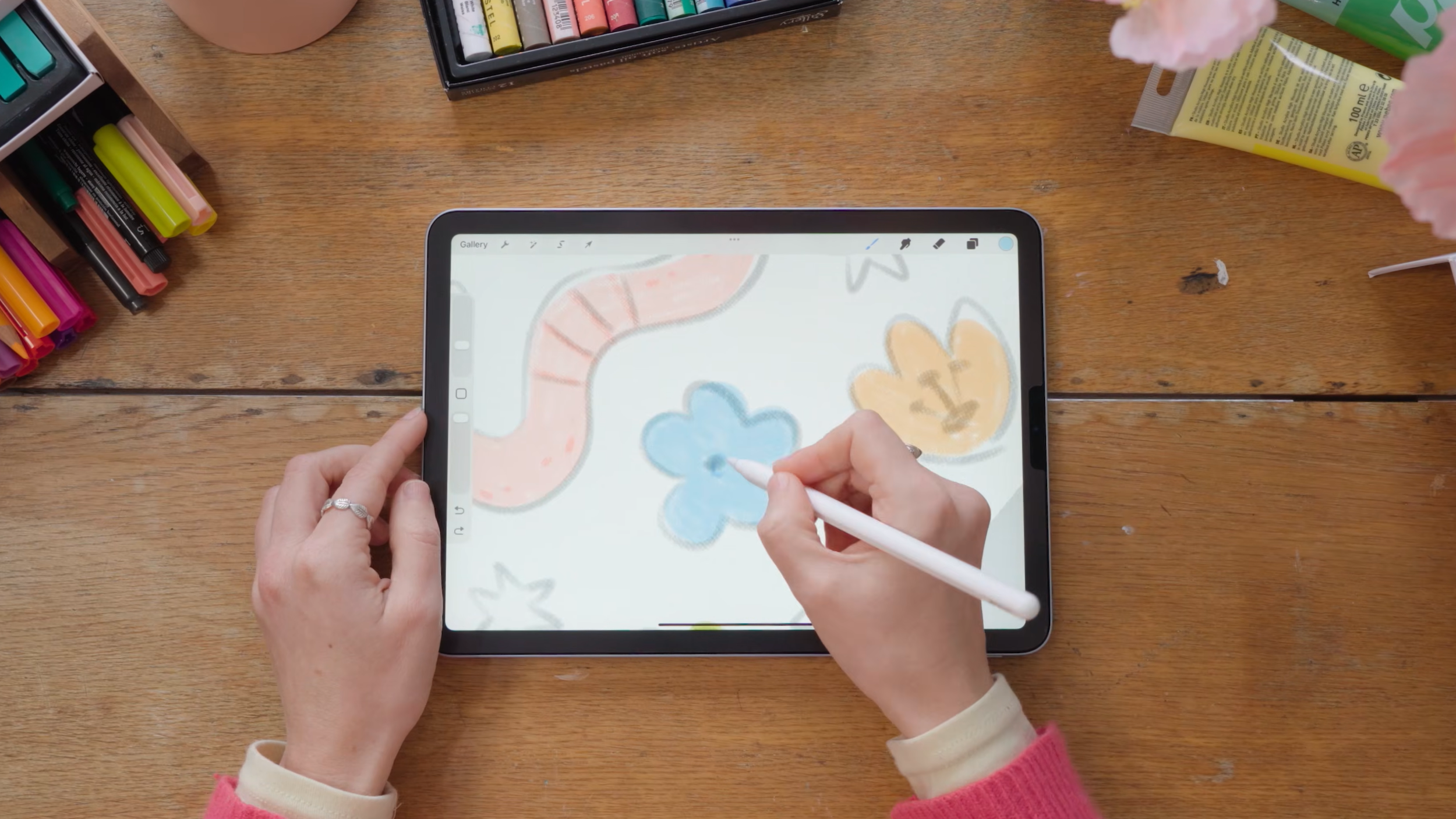
I then draw in Procreate on a 4th generation iPad Air with an Apple Pencil.
These are both a great setup, but there are a few bottlenecks that I want to improve on.
What I want to improve
I want to use both hands more effectively to share the physical load when I’m doing a lot of drawing, so I’ve been looking for a more ergonomic keyboard with a smaller footprint for a while, and I would love one that I can use with both of my devices.
I have two hands that I can use as tools for illustrating, but when I’m drawing in Procreate my right hand is doing 95% of the work and my left hand is really just changing the brush size.
That’s the main reason why I don’t illustrate professionally in Procreate - it’s slow and a lot of repetitive work on one arm.
The solution
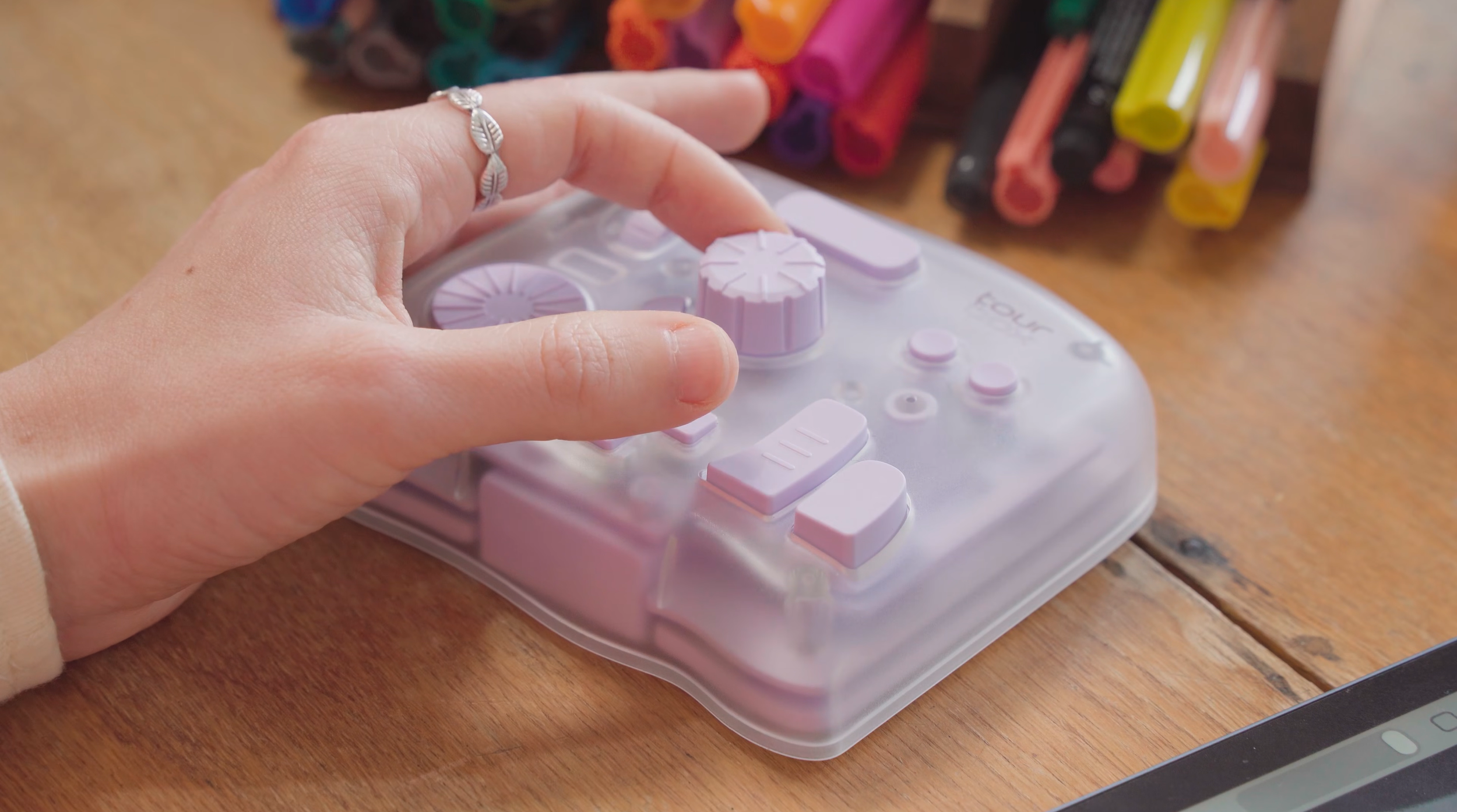
So I’ve replaced my regular keyboard with a TourBox Elite Plus, and after using this setup for a few months I love how efficient and comfortable it is for drawing.
The TourBox is a controller designed for creative workflows, so it’s got lots of customisable wheels and buttons that come preset with useful shortcuts - or you can fully customise it.
There are a few reasons why this cute purple box is so good for my art setup makeover, and the most critical one is that I can use it across both of my devices, and both drawing programs.
Being able to use both of my hands fully when I’m illustrating in Procreate is such a gamechanger for my workflow.
My biggest bottleneck with Procreate is that I have to click around the screen so much with my right hand to select tools and colours rather than being able to keep my hand where I’m drawing, which is a lot more work for my shoulder.
Now with my new controller I can use my left hand to switch between the tools I’m using and keep my drawing hand in the same place a lot more.
On the TourBox my left hand can:
switch between my brush and eraser
open the colour picker
open the layer menu
change the brush size really easily, and
undo and redo…all while barely moving my left hand.
There are lots more actions available, but these are the ones that I use the most for my workflow.
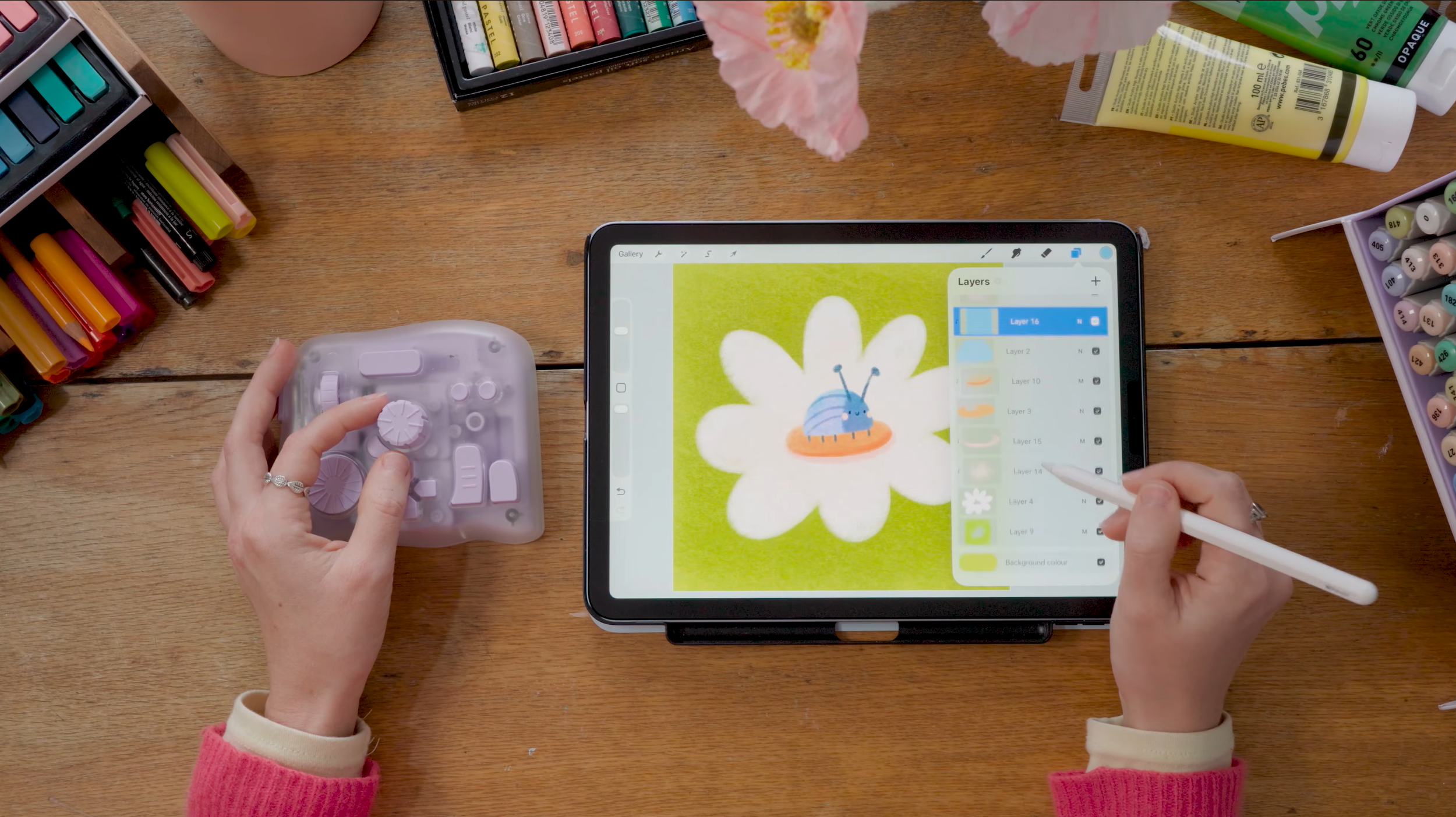
Honestly I thought it would take a while to program it and get set up but the presets for Procreate are spot on - I’ve only changed one shortcut function to work better for my preferences.
Once I’m done in Procreate, I can switch to Photoshop on my computer and the TourBox will automatically change the shortcuts to my Photoshop presets.
This setup is much more comfortable and more compact than my keyboard so it’s a nice upgrade for my professional drawing setup. I’m not a physiotherapist but my hand feels more relaxed and at a more natural angle when I’m pushing these buttons compared to using the full keyboard.
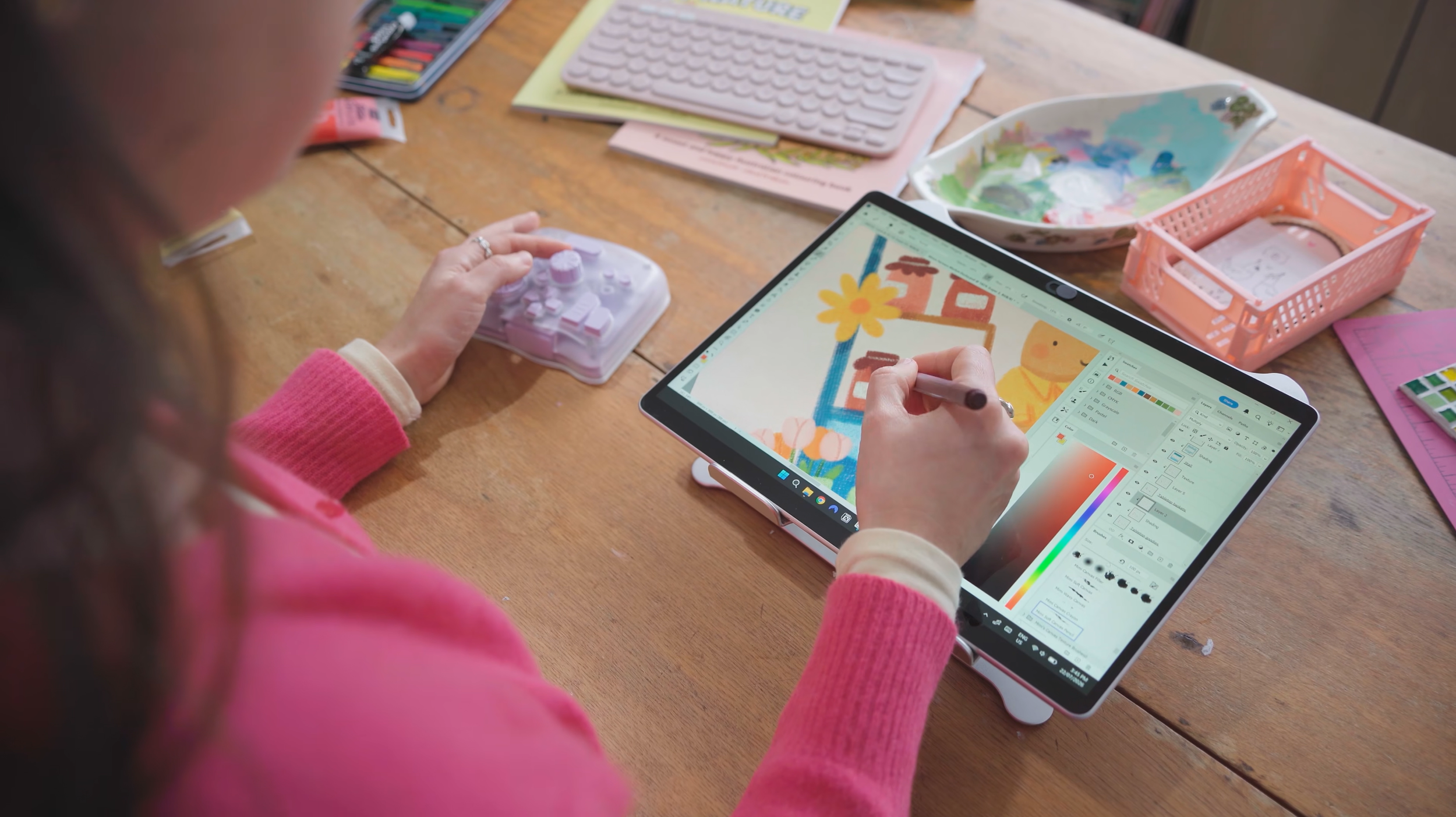
Something that surprised me about this TourBox controller is how solid and stable it feels on the desk and I really like that about it. The wheels and knobs and buttons all feel really good quality and satisfying to use, and I love it when tech comes in different colours and not just black.
I can definitely feel how much smoother my process is being able to use both of my hands as drawing tools in Procreate now - changing brush size especially is really smooth but also just being able to easily switch between all the tools or open panels with my left hand really shares the workload and reduces travel time for my right arm.
It always takes a bit of time to commit a new setup to muscle memory but within a drawing or two I felt really comfortable with these buttons and shortcuts, so it was well worth the investment and something I probably could have done sooner.
If you’re a professional or someone who takes their digital art seriously this is a really interesting tool and might also be the thing that helps me draw in Procreate more professionally.
See this digital art setup in more detail on YouTube:
